How to Check Windows Version : 2 Easy Methods
Want to know which version of Windows is installed on your computer? Here are two easy ways to check your Windows version, edition, and OS build.
Method 1: Check Windows Settings
Open Start > Settings (or press Windows + I). Select System, then scroll to the bottom of the page and click About. You will find your Windows version in the Windows specifications section, next to Version.
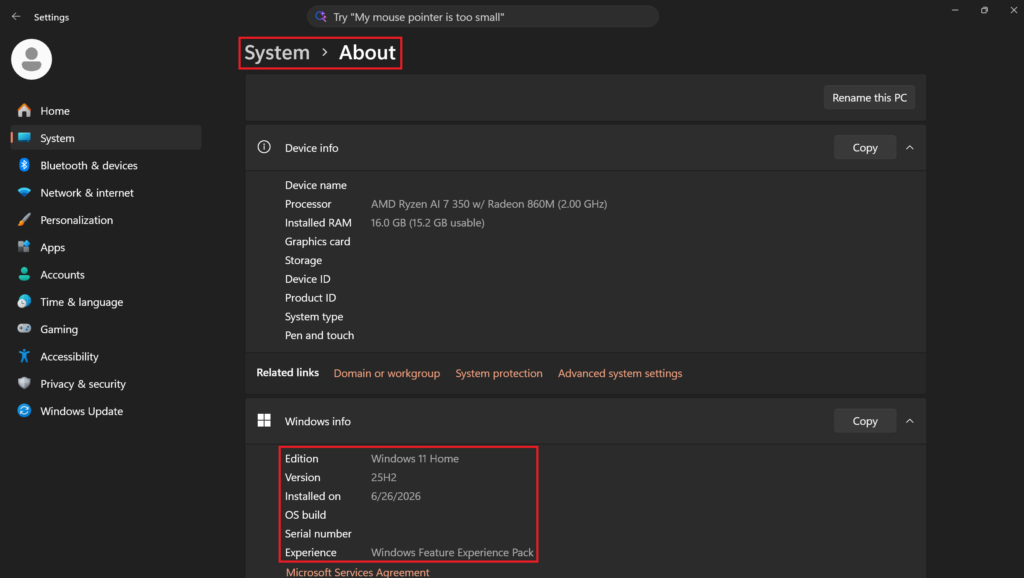
Above Windows specifications, you can also find Device specifications, including information about your processor, installed RAM, and system type.
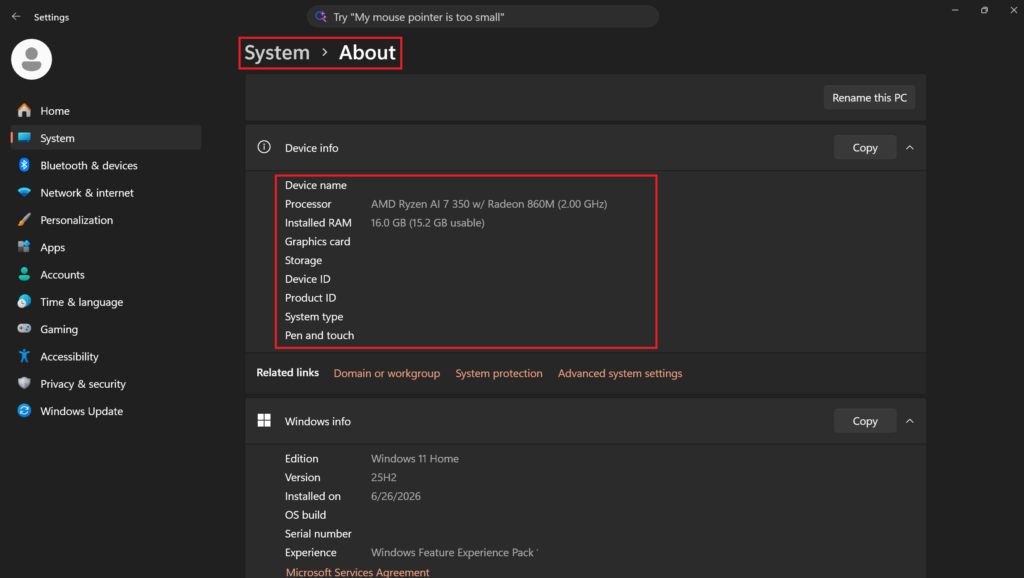
💡 Tip: You can see whether your computer is running a 32-bit or 64-bit operating system
Method 2: Use the Winver Command
Press Windows + R to open the Run window and type “winver“.
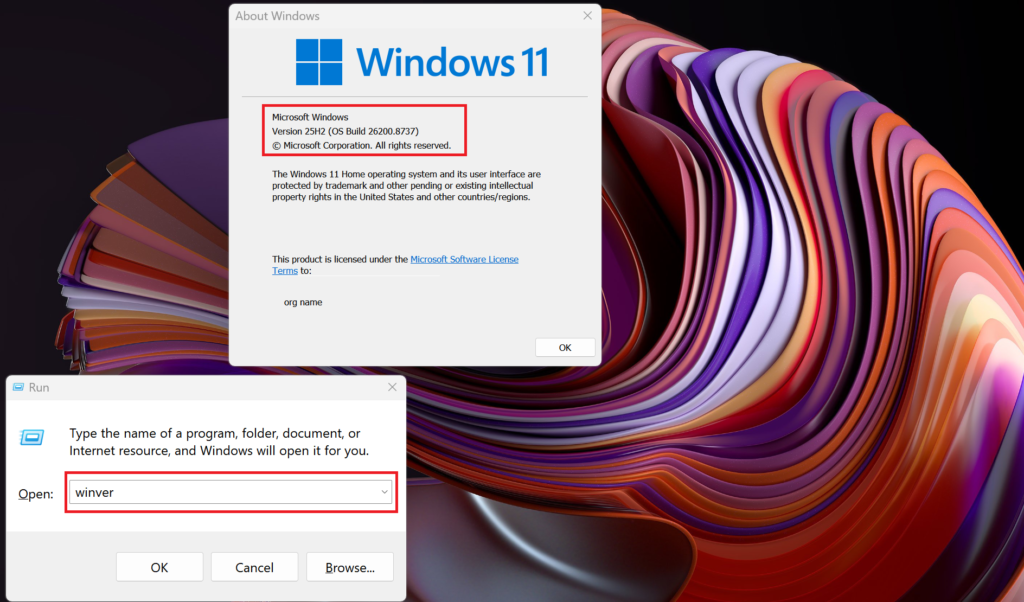
💡 Tip: You can also open the Start menu, search for winver, and select it from the results.
Eureka!
You've reached the end of this guide.
One last tutorial
Bookmark this page by pressing
Ctrl
+
D