How to Exit Full Screen on Windows 11 : 7 Easy Methods
Want to know how to exit full screen on Windows 11? Here are some easy methods to leave full-screen mode.
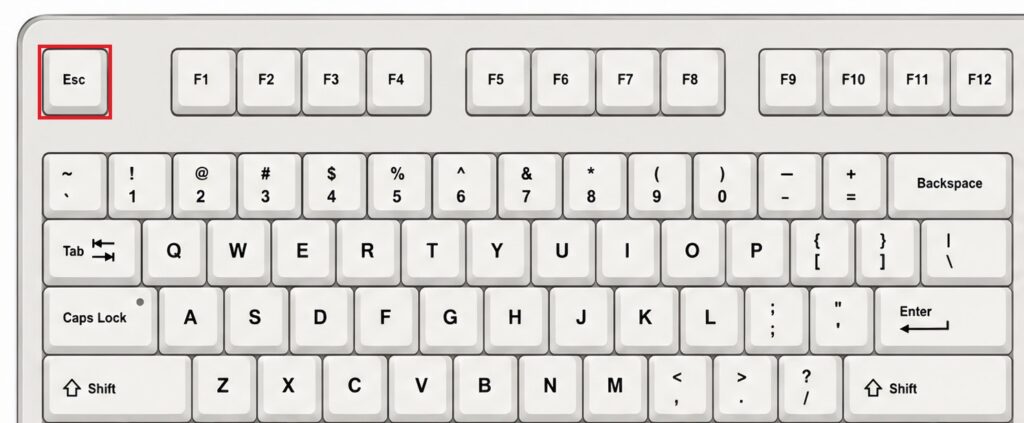
Method 1: Press the Esc Key
Press the Esc key in the upper-left corner of your keyboard.
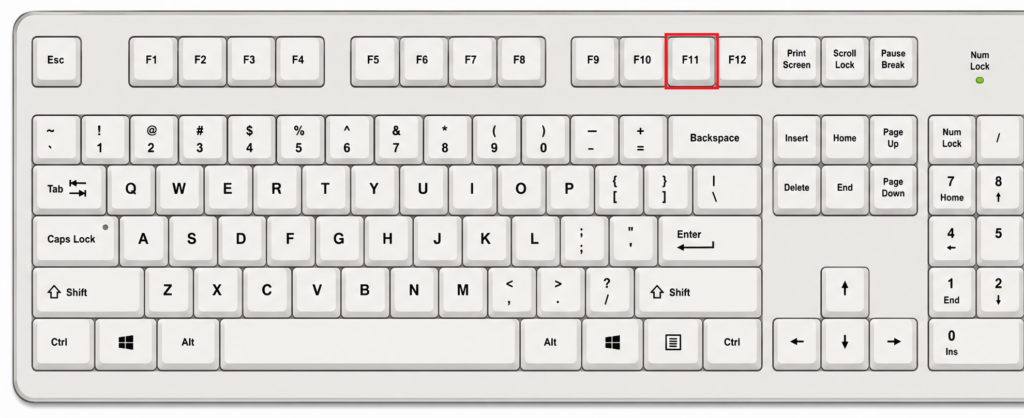
Method 2: Press F11
Press F11 to exit full-screen mode.
The F11 key is commonly used to enter and exit full-screen mode in web browsers such as Google Chrome, Microsoft Edge, and Firefox.
Press F11 again to return the window to full-screen mode.
⚠️ Note: On some keyboards, the F11 key may also control volume, brightness, or another laptop function. In that case, press Fn + F11.
Method 3: Click the Exit Full-Screen Button
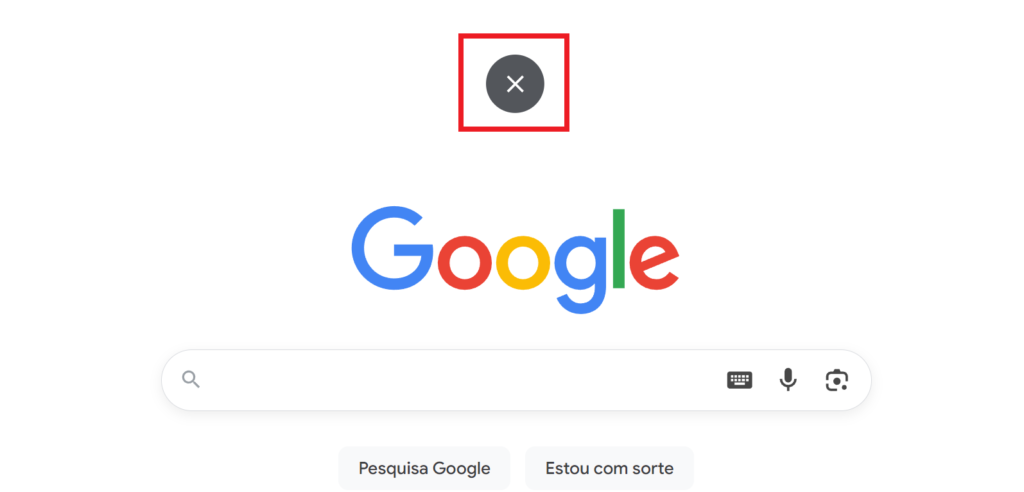
Move your mouse to the top of the window. An X icon will appear at the top of the screen. Click it to exit full-screen mode and return the application to its normal window size.
Bonus: What to Do When Full Screen Will Not Close
If none of the previous methods work, try these options:
1. Press Alt + Tab to switch to another open window.
2. Press the Windows key to open the Start menu.
3. Press Alt + Enter, which toggles full screen in some games and applications.
4. Press Alt + F4 to close the current window.
⚠️ Note: Alt + F4 closes the application. Save your work before using this shortcut whenever possible.
If the application is frozen, press Ctrl + Shift + Esc to open Task Manager. Select the application and click End task.
⚠️ Note: Closing an application through Task Manager may cause you to lose unsaved work.